How to Check If AI Crawlers Can Access Your Website
By Joe Della Mora, Founder, GroundScore
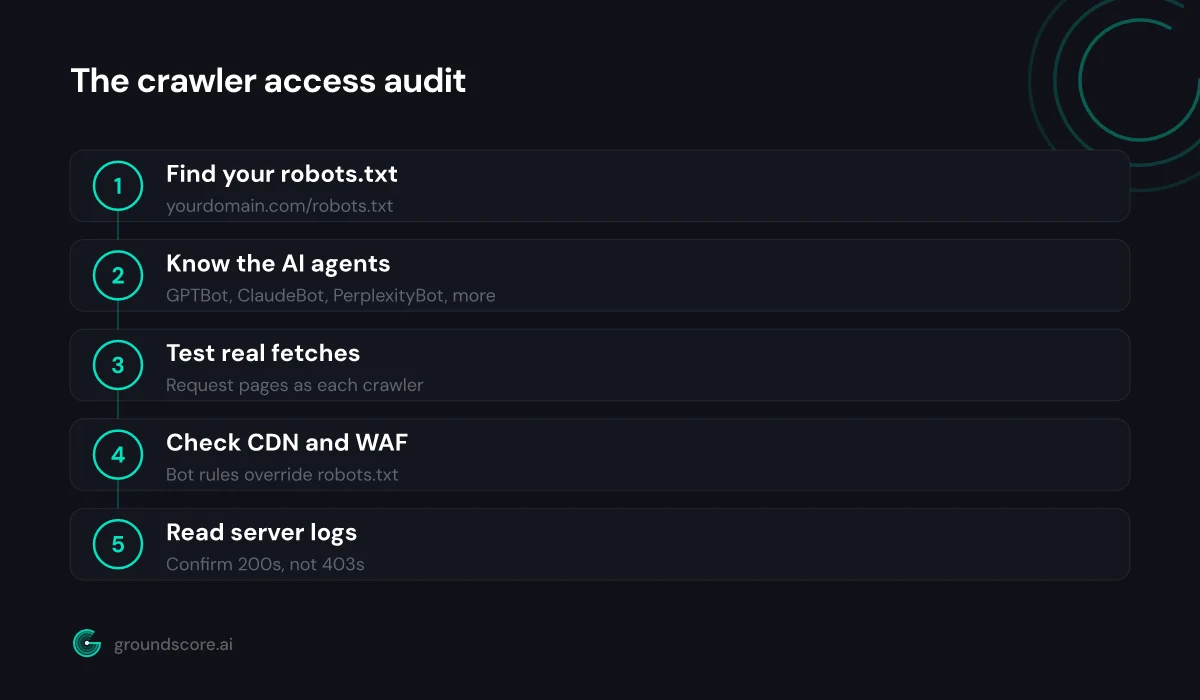
If AI crawlers cannot reach your website, nothing else you do for AI search visibility matters — you are invisible to ChatGPT, Claude, and Perplexity no matter how good your content is. This guide is a complete AI crawlers robots.txt audit you can run yourself in about thirty minutes. You need no special tools: a browser covers most of it, a command line helps for one step, and access to your CDN or hosting dashboard makes the last two steps thorough. Difficulty is low; the hardest part is knowing which user agents to look for, and this guide lists every one — including a blocker most audits miss entirely because it never appears in robots.txt. We will go step by step: find your robots.txt, read it correctly, test real fetches, check your CDN and firewall, and confirm everything against server logs.
Step 1: find and read your robots.txt file
Direct answer: Your robots.txt file lives at yourdomain.com/robots.txt — type that URL into any browser. It is a plain-text file of User-agent lines naming crawlers and Allow or Disallow rules telling each one what it may fetch. If the file returns a 404, nothing is blocked and crawlers assume full access.
Start by simply loading the file. If you see plain text, you have a robots.txt; if you see a 404 error, you can skip to Step 3, because a missing robots.txt blocks nobody.
Reading the file takes one rule: crawlers obey the most specific User-agent block that matches them. A file might say User-agent: * followed by Disallow: /admin/ — that applies to every crawler without its own block, and it only restricts the admin folder. But if there is a User-agent: GPTBot block with Disallow: /, GPTBot specifically is banned from the entire site, regardless of what the * block allows.
Watch for these patterns as you read:
Disallow: /underUser-agent: *— everything is blocked for every crawler that lacks its own block. This is the most damaging single line a site can carry.Disallow:with nothing after it — this allows everything, the opposite of the line above. The two are easy to confuse.- Named AI agent blocks — any block naming GPTBot, ClaudeBot, or the other agents from Step 2 deserves a careful look at what it disallows and why.
One subtlety worth knowing before you judge what you find: robots.txt is a convention, not an enforcement mechanism. It tells well-behaved crawlers what you want; it does not physically stop anyone. That cuts both ways for this audit — a permissive robots.txt does not prove crawlers get through (Steps 3 and 4 cover the systems that actually enforce), and a restrictive one only works on crawlers that choose to honor it, which the major AI operators do.
Copy the file somewhere you can mark it up. The next step is checking it against the actual list of AI user agents.
Step 2: know which AI user agents to look for
Direct answer: Scan your robots.txt for these user agents: GPTBot, OAI-SearchBot, and ChatGPT-User (OpenAI), ClaudeBot and Claude-User (Anthropic), PerplexityBot (Perplexity), and Google-Extended (Google's AI training control). A Disallow: / under any of them — or under User-agent: * with no overrides — blocks that crawler from your site.
Here is the working list, and what each agent is for:
| User agent | Operator | What it does |
|---|---|---|
| GPTBot | OpenAI | Collects content for model training |
| OAI-SearchBot | OpenAI | Indexes pages for ChatGPT search |
| ChatGPT-User | OpenAI | Fetches pages live during user conversations |
| ClaudeBot | Anthropic | Collects content for training Claude |
| Claude-User | Anthropic | Fetches pages live when Claude users need them |
| PerplexityBot | Perplexity | Indexes pages for Perplexity answers |
| Google-Extended | robots.txt control for AI training use |
The distinction that matters most for visibility: some of these agents feed model training, while others feed live answers. Blocking a training crawler like GPTBot limits what future models learn about you. Blocking a search or user-triggered agent like OAI-SearchBot or PerplexityBot removes you from answers being generated for real users today. Many sites blocked everything with "AI" in the name during the scraping debates and unknowingly took themselves out of AI search results as collateral damage.
Check each agent against your file and note its status: explicitly allowed, explicitly disallowed, or covered only by the * block. OpenAI documents its crawlers and their IP ranges at platform.openai.com/docs/bots if you want to verify details straight from the source.
Step 3: test whether your pages actually fetch
Direct answer: Reading robots.txt is not enough — test a real fetch. Use an HTTP client or command line to request a key page with an AI crawler's user-agent string and confirm you get a 200 status and full HTML back, not a 403, a challenge page, or an empty shell.
robots.txt is a request, and your infrastructure can override it in both directions. A crawler your robots.txt welcomes can still be turned away by a firewall rule three layers down. The only way to know is to impersonate the crawler and see what happens.
From a terminal, the test is one line per agent:
curl -I -A "GPTBot" https://yourdomain.com/your-key-page
Repeat with ClaudeBot, PerplexityBot, and the others from Step 2, against your homepage and one or two important pages. You are looking at the status code on the first line of the response:
- 200 — the page served normally. Good.
- 403 or 401 — something is actively refusing this user agent. Note which agents trigger it; that pattern points at a bot rule.
- 429 — rate limiting is kicking in aggressively.
- 301 or 302 to a verification page — a challenge is intercepting the request.
Then run one fetch without -I to see the body. If the HTML comes back nearly empty — a <div id="root"></div> and a pile of script tags — your content only exists after JavaScript runs, and crawlers that do not execute JavaScript see a blank page. That is an access problem no robots.txt edit will fix; it needs server-side rendering or prerendering for your key pages.
Step 4: check your CDN and firewall rules
Direct answer: CDN and firewall bot rules can block AI crawlers even when robots.txt allows them. Check your CDN or WAF dashboard for bot-management settings, AI-scraper toggles, and rate-limit rules, and make sure verified AI search agents are on the allow side of whatever policy is active.
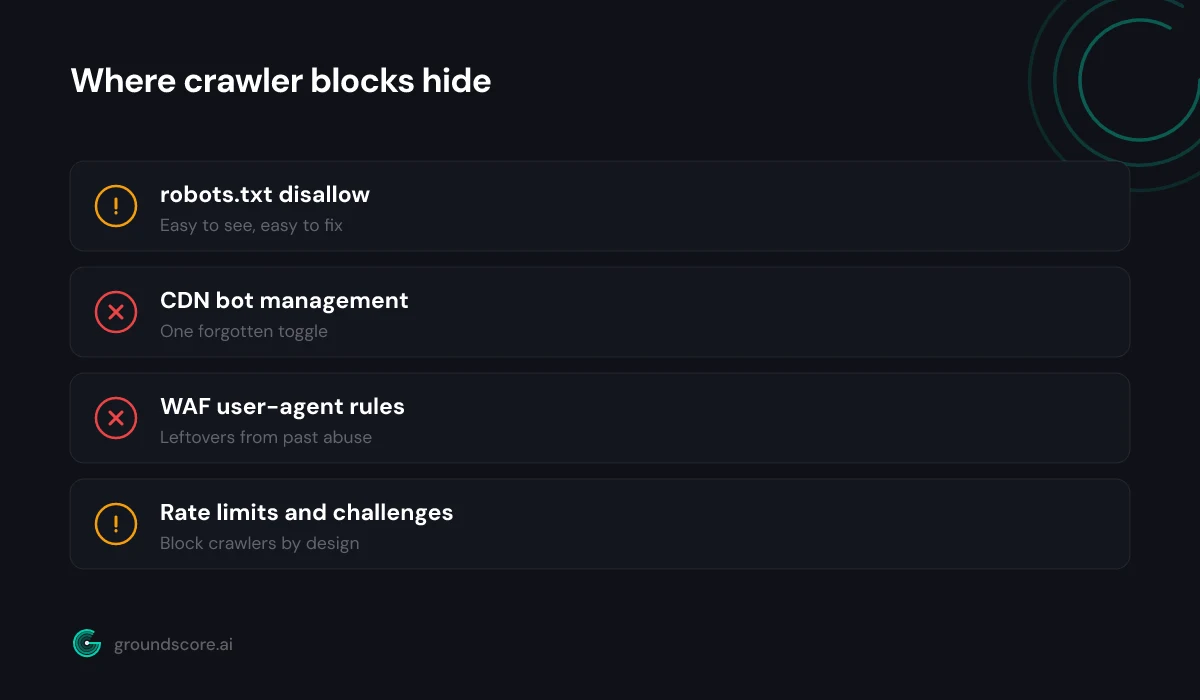
This is the blocker robots.txt audits miss. When we run free checks at GroundScore, the most common serious access problem I see is not a robots.txt line at all — it is a bot-management rule someone enabled on the CDN years ago and forgot, silently returning 403s to crawlers the site's robots.txt politely welcomes.
Work through your stack:
- CDN bot management. Major CDNs ship one-click features that block "AI scrapers and crawlers" as a category. Find the bot section of your dashboard and read what is actually enabled. Some products block AI training crawlers and AI search crawlers together, which is rarely what a business wants.
- WAF rules. Custom firewall rules matching on user-agent strings are common leftovers from past abuse incidents. Search your rule list for "bot", "GPT", "crawl", and "scrape".
- Rate limiting. Crawlers fetch faster than humans browse. An aggressive rate limit can effectively block a crawler without a single explicit deny rule.
- Managed challenges. CAPTCHA and JavaScript challenges stop automated fetchers by design. A crawler cannot solve a challenge; to a challenge wall, GPTBot and a spam bot look identical.
If Step 3 showed 403s or challenge redirects for agents your robots.txt allows, the cause is almost certainly on this list. Fix it here, then rerun the Step 3 fetches to confirm the path is clear end to end.
Step 5: confirm with your server logs
Direct answer: Your server or CDN access logs are the ground truth. Search recent logs for the AI user-agent strings and check two things: the crawlers are showing up at all, and the status codes they receive are 200s rather than 403s, 429s, or redirects to a challenge page.
Everything so far tested what should happen. Logs show what actually happens. Most hosting dashboards and CDNs expose access logs or traffic analytics; filter them by user agent and search for the names from Step 2.
Two healthy signals to look for. First, presence: AI crawlers appearing in your logs at all means they know your site exists and are trying to read it. Second, success: the requests should be completing with 200 status codes, across your real content pages rather than just the homepage.
And two warning signs. A crawler that appears in logs but collects 403s or 429s is being blocked by something in Step 4's territory — you now have the exact timestamp and rule to hunt down. A crawler that never appears at all, weeks after you opened access, may simply not have discovered your site yet; a clean sitemap and an llms.txt file give crawlers a clear map once they arrive.
One caution: user-agent strings in logs can be spoofed by third parties pretending to be AI crawlers. For an access audit this mostly does not matter — you care whether legitimate fetches succeed — but if you see suspicious volume, verify source IPs against the ranges the operators publish.
That completes the audit. If all five steps came back clean, your access layer is healthy and any visibility problems live in structure or content instead — the three-layer breakdown in our AEO guide covers what to check next.
Frequently asked questions
How often should I re-run this audit?
Quarterly is a sensible default, plus once after any CDN, firewall, or hosting change — those migrations are exactly when a forgotten bot rule reappears. Automated monitoring can watch access continuously, but even a calendar reminder to re-run the five steps keeps you from being silently blocked for months.
Does blocking AI crawlers hurt my Google rankings?
No. Google's traditional ranking crawler is Googlebot, and none of the AI agents in this guide affect it. Google-Extended controls AI training use of your content, not search indexing. Blocking or allowing GPTBot, ClaudeBot, or PerplexityBot changes your AI visibility only — your existing rankings stay untouched.
Should I allow AI training crawlers like GPTBot?
That is a genuine business decision, not a technical one. Allowing training crawlers means future models learn about your business from your own pages, in your own words. Blocking them keeps your content out of training data. Many businesses allow them precisely because being known to the models is the point.
What if I don't have access to my robots.txt?
Ask whoever manages your site — on most platforms it is editable through a settings screen or an SEO plugin rather than the filesystem. You can still run Steps 1 through 3 of this audit with nothing but a browser and a terminal, and hand the findings to your developer.
Can a page be crawlable but still invisible to AI search?
Yes, easily. Access is necessary, not sufficient. A crawlable page can still lack structured data, bury its answers, or say nothing an engine finds worth quoting. Access problems are just the cheapest ones to find and fix, which is why this audit comes first in any AI visibility effort.
The bottom line
Access is the layer of AI visibility where a single forgotten line can zero out everything else you build, and it is also the layer you can fully audit in one sitting. Thirty minutes across these five steps — robots.txt, the agent list, live fetch tests, CDN and firewall rules, and logs — tells you definitively whether ChatGPT, Claude, and Perplexity can read your site.
If you would rather not run the fetches by hand, a free AI visibility check tests your crawler access automatically — along with your structure and your actual presence in AI answers — in about a minute, no account needed.
How visible is your site in AI search?
Check your AI visibility score in seconds. Free, no account needed.
Check your score